
If you're like most people, you spend hours in front of your Mac every day. A few minutes of setup can make all of that time more pleasant — and more productive. Whether you have a MacBook Air, a MacBook Pro, or a desktop Mac, here are nine ways to customize and personalize your Mac desktop, home screen, and Dock so it feels like your own. Most take under a minute; the last one changes how you use your Mac entirely.
The steps below use System Settings, as found on macOS Ventura and later. On older versions of macOS, look for the equivalent panes in System Preferences.
1. Pick a wallpaper that speaks to you
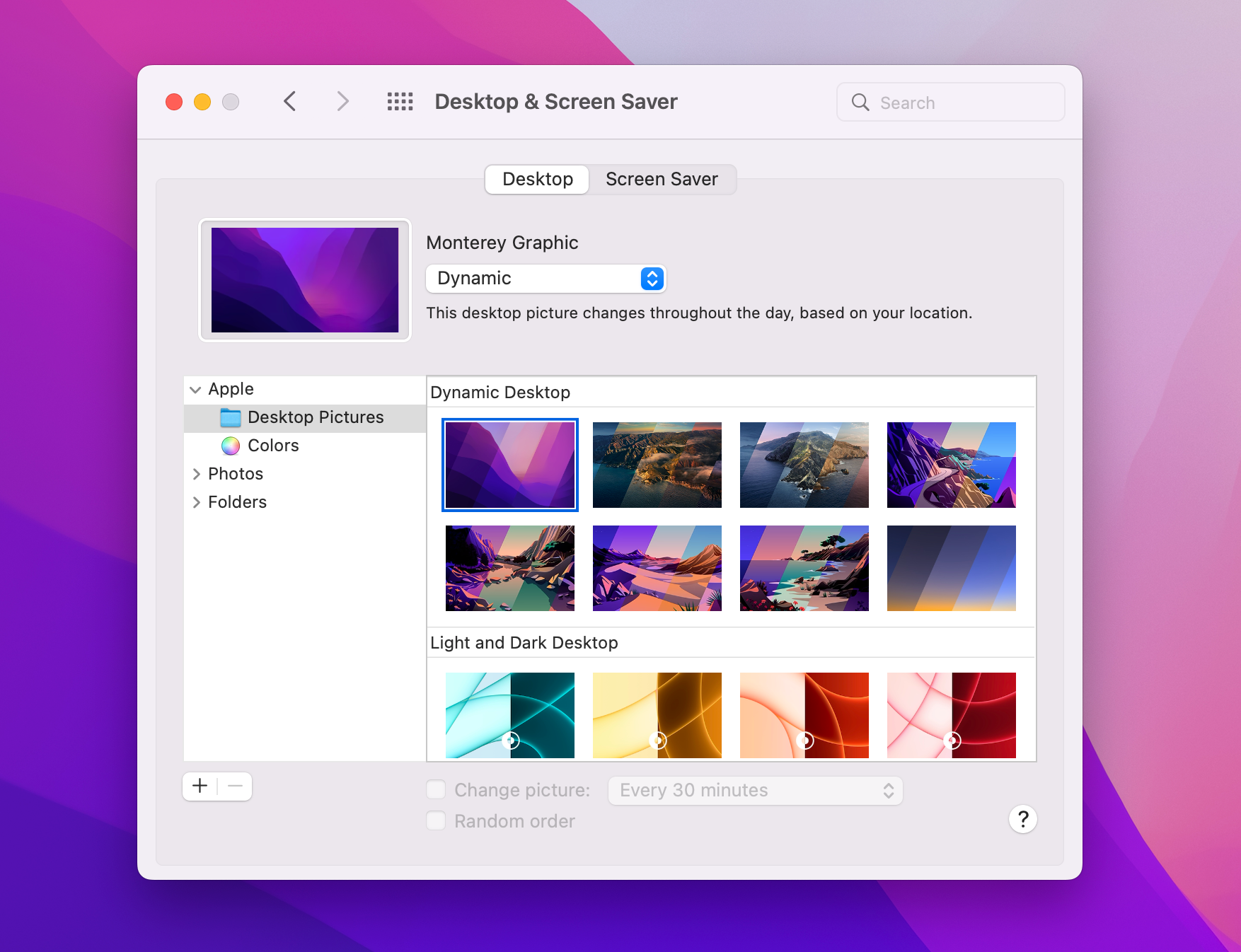
The fastest way to change how your Mac feels is to change what's behind everything else. Go to System Settings > Wallpaper and browse the built-in collection — including dynamic wallpapers that shift with the time of day and aerial screen savers that double as slow-motion wallpapers.
For something personal, click “Add Photo” or “Add Folder or Album” and point your Mac at your own pictures. You can rotate through a folder automatically — every hour, every day, or every time you wake your Mac.
2. Choose Light, Dark, or Auto
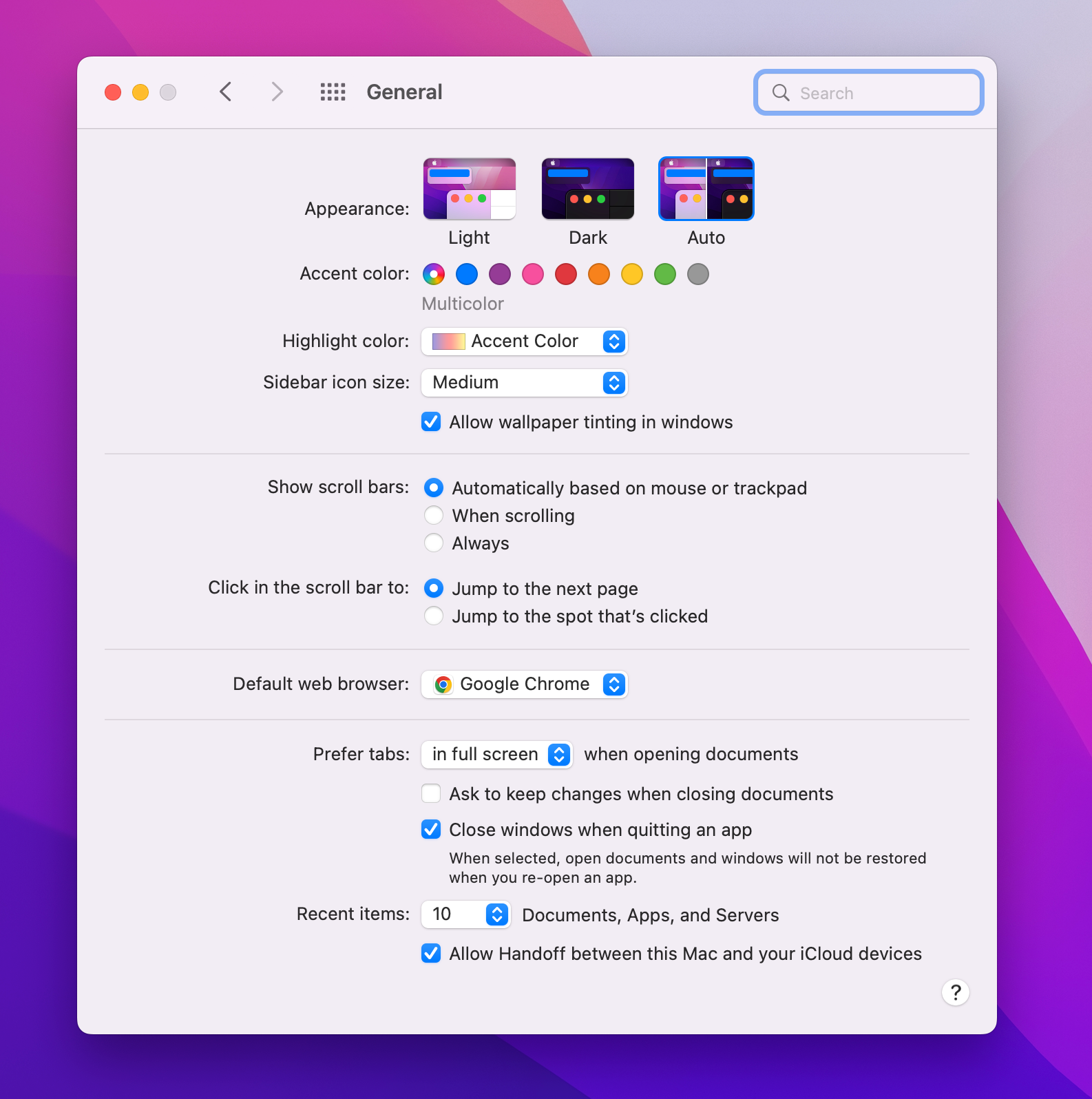
Under System Settings > Appearance you can switch the whole interface between Light and Dark, or pick Auto to follow the sun — light during the day, dark at night.
The same pane hides two smaller knobs worth turning: the accent color, which tints buttons, menus, and controls across every app, and the highlight color used when you select text.
3. Make the Dock yours
Remove the apps you never use
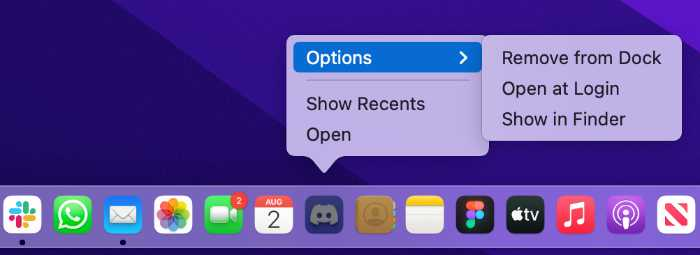
Apple preloads the Dock with a row of default apps. Right-click any of them and choose Options > “Remove from Dock”, or simply drag the icon out of the Dock until you see “Remove” and let go.
Position and size
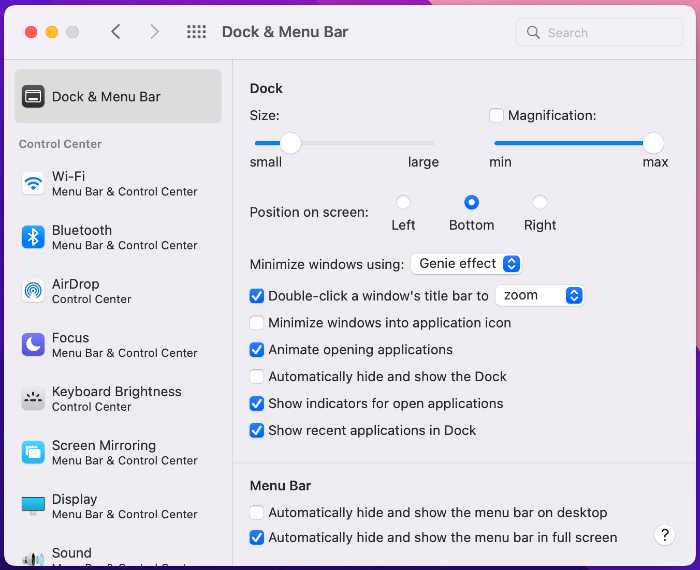
In System Settings > Desktop & Dock you can resize the Dock, move it to the left or right edge, enable magnification on hover, hide it automatically, and turn off the “Recent Applications” section.
Add your everyday folders
Drag any folder to the right end of the Dock, next to the Trash, and it becomes a one-click destination. Right-click it to choose how it opens: as a fan, a grid, or a list — and whether the icon shows a folder or a stack of its contents.
5. Add widgets for the information you check constantly
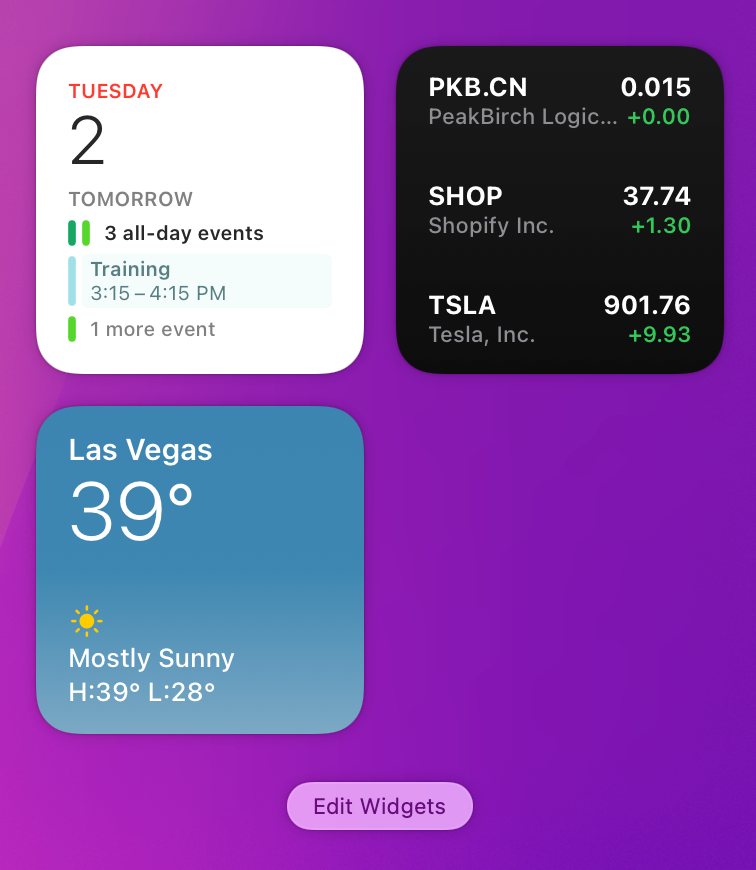
Click the clock in the menu bar (or swipe left from the right edge of your trackpad with two fingers) to open Notification Center, then scroll down and click “Edit Widgets”. Weather, stocks, calendar, reminders — add what you glance at most.
Since macOS Sonoma, widgets can also live directly on the desktop: drag them out of the widget gallery and drop them anywhere. You can even use widgets from your iPhone, no Mac app required.
6. Clean up your desktop icons
A cluttered desktop slows you down. The gentle fix: right-click the desktop and choose “Use Stacks”, and macOS will gather your files into tidy piles by kind.
The radical fix: hide every desktop icon without deleting anything. Open Terminal and run:
defaults write com.apple.finder CreateDesktop false; killall FinderYour files stay safely in the Desktop folder — they just stop rendering. Replace false with true and run it again to bring them back.
And if you miss the classic Macintosh HD icon on your desktop, open Finder, choose Finder > Settings > General, and check “Hard disks”.
7. Set a custom user icon
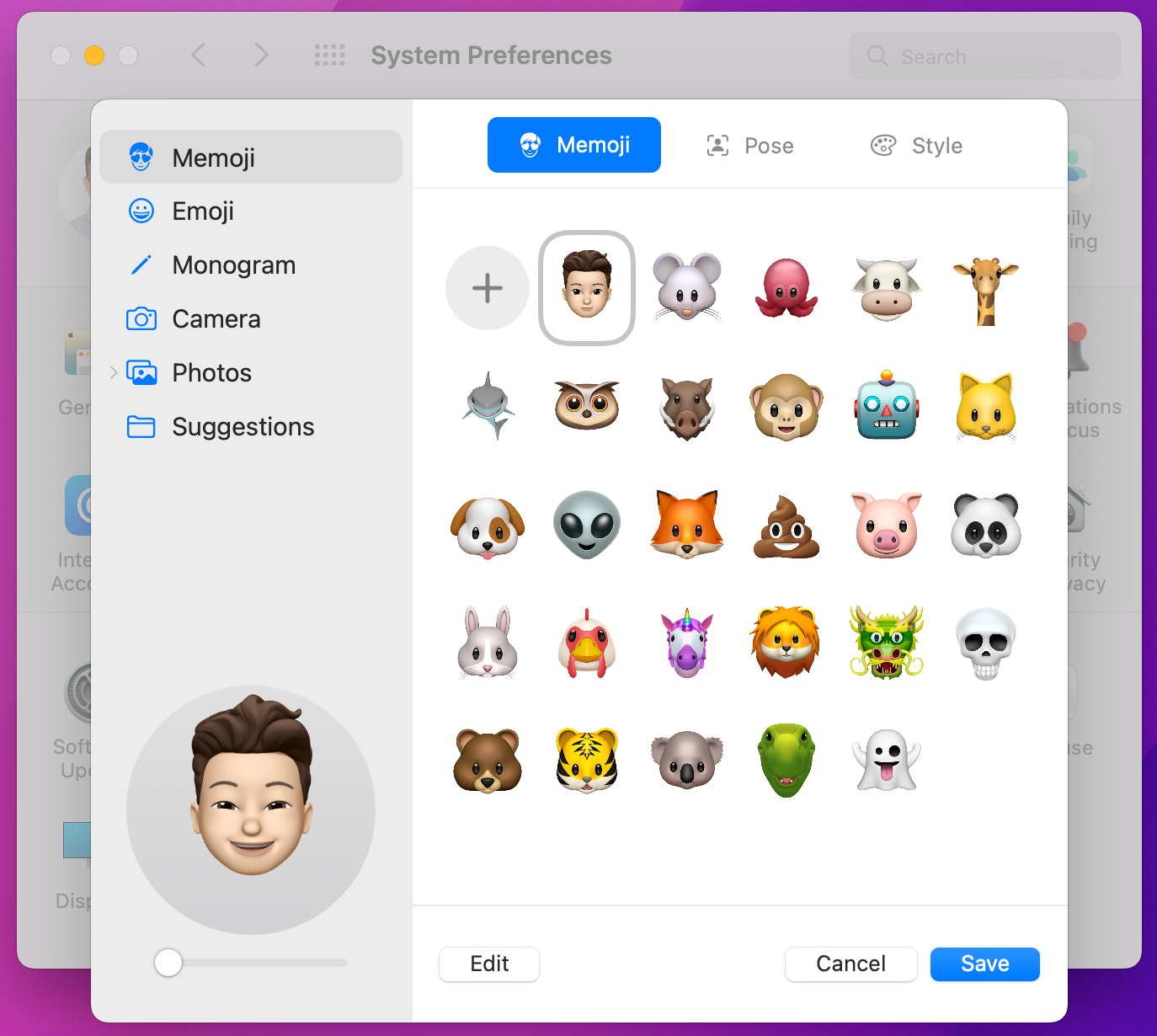
The picture next to your name on the login screen doesn't have to be the default. In System Settings, click your account picture at the top to swap it for a photo, a Memoji, an emoji, or a monogram — with adjustable colors and framing.
8. Adjust your trackpad and keyboard
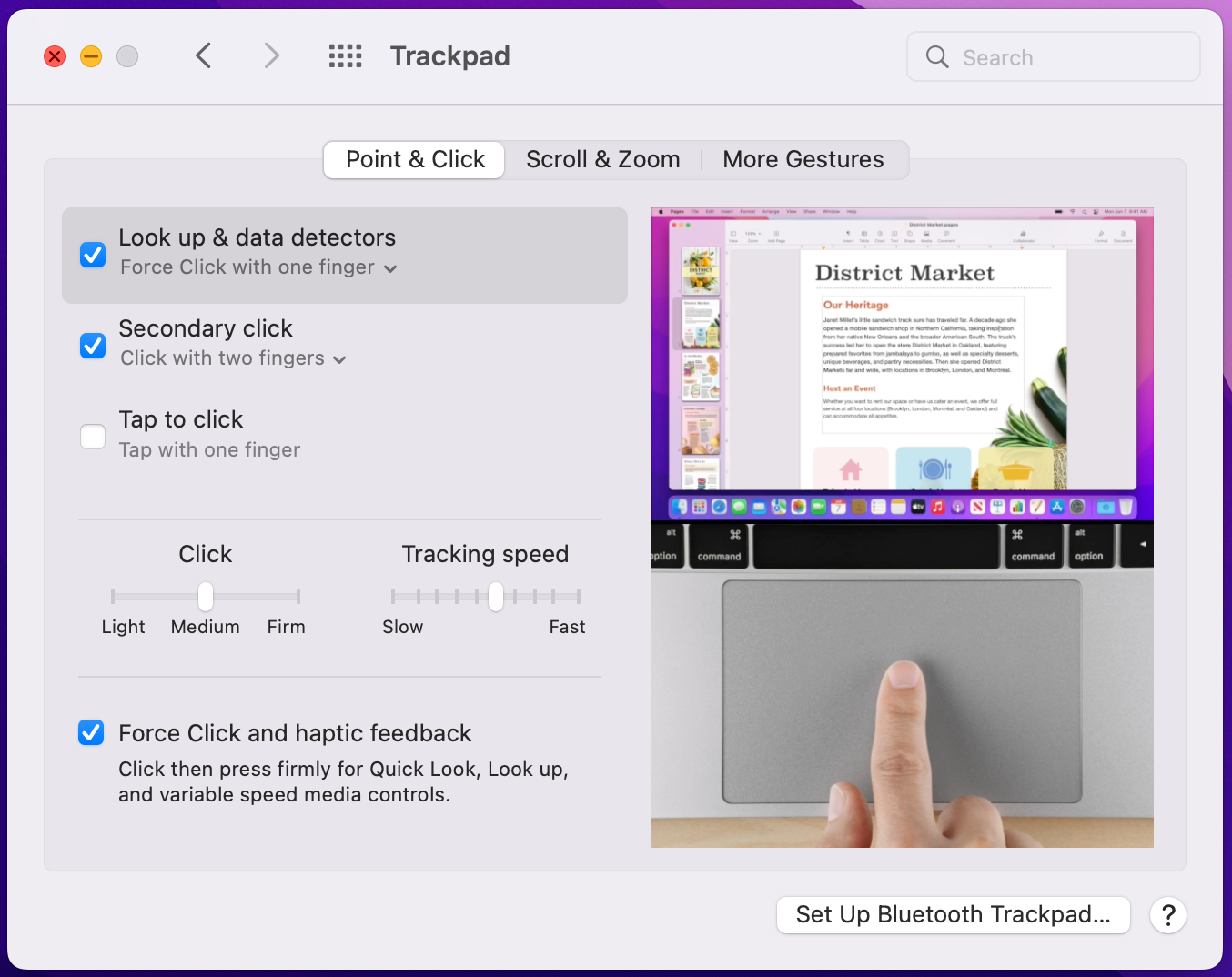
In System Settings > Trackpad, turn on “Tap to click” and “Secondary click” if you haven't — they're the two settings switchers miss most. Adjust the tracking speed to your comfort, and browse the Gestures tabs: each gesture plays a short preview video so you know exactly what you're enabling.
Under System Settings > Keyboard, try raising the key repeat rate and shortening the delay until repeat. If you type a lot and use shortcuts like Shift-Arrow to select text, a faster repeat rate makes the whole machine feel quicker.

9. Add a Windows-style taskbar
If you've come to the Mac from Windows — or you simply want more from the bottom of your screen — the deepest customization of all is replacing the Dock itself. uBar turns it into a real taskbar: labeled windows, live window previews on hover, grouped apps, pinned favorites, and a bar on every monitor.
It can look like Windows, like macOS, or like nothing you've seen before — with themes, sizes, and layouts to match the rest of your newly customized desktop.

Make the Dock your own, too.
uBar is the Dock replacement for the Mac. Free for 14 days, then a one-time $39.
Explore uBar